
How to Convert Photos to PDF on iPhone (Without Uploading)
A comprehensive walkthrough of turning photo library pictures into a single, multi-page PDF on iOS without third-party web uploads.
Read guide →Scan physical documents with automatic edge detection, pick photos from your library, arrange and redact pages, and export clean PDFs — entirely on your iPhone or iPad.

Free on the App Store · iOS 18.0+ · Zero data collected
Every photo, scan, and PDF remains on your device. The app operates offline and makes zero network requests.
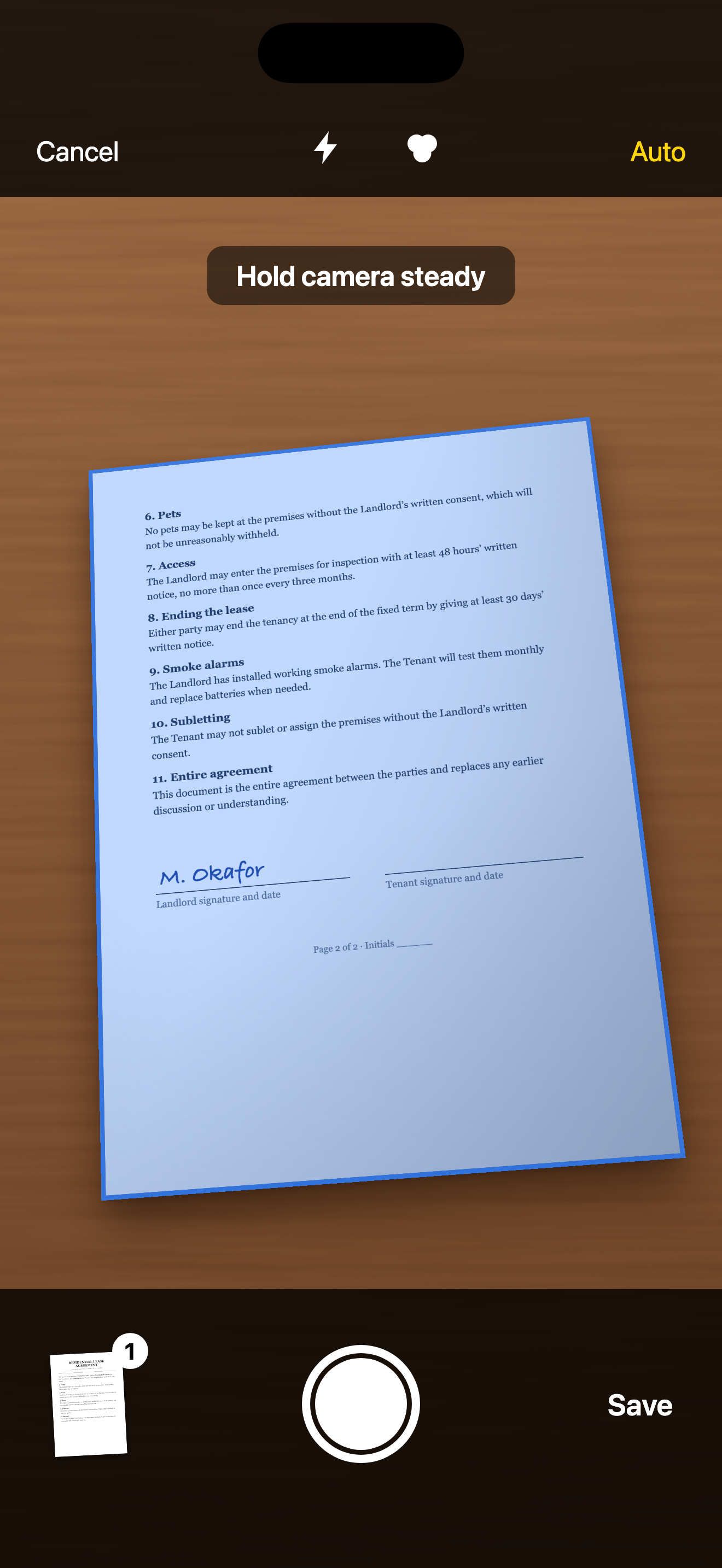
Automatic edge detection, perspective correction, and multi-page capture built with Apple's native VisionKit.
Rotate, crop, redact personal data, add signatures, erase marks, and change page looks before exporting.
No forced watermark, no ads, no account sign-up, and no paid feature locks. Pure utility software.
Designed specifically for iOS with native SwiftUI and Apple system frameworks for lightning-fast performance.
Point your camera at documents, receipts, or forms. VisionKit snaps edges automatically, straightens perspectives, and builds multi-page documents seamlessly.
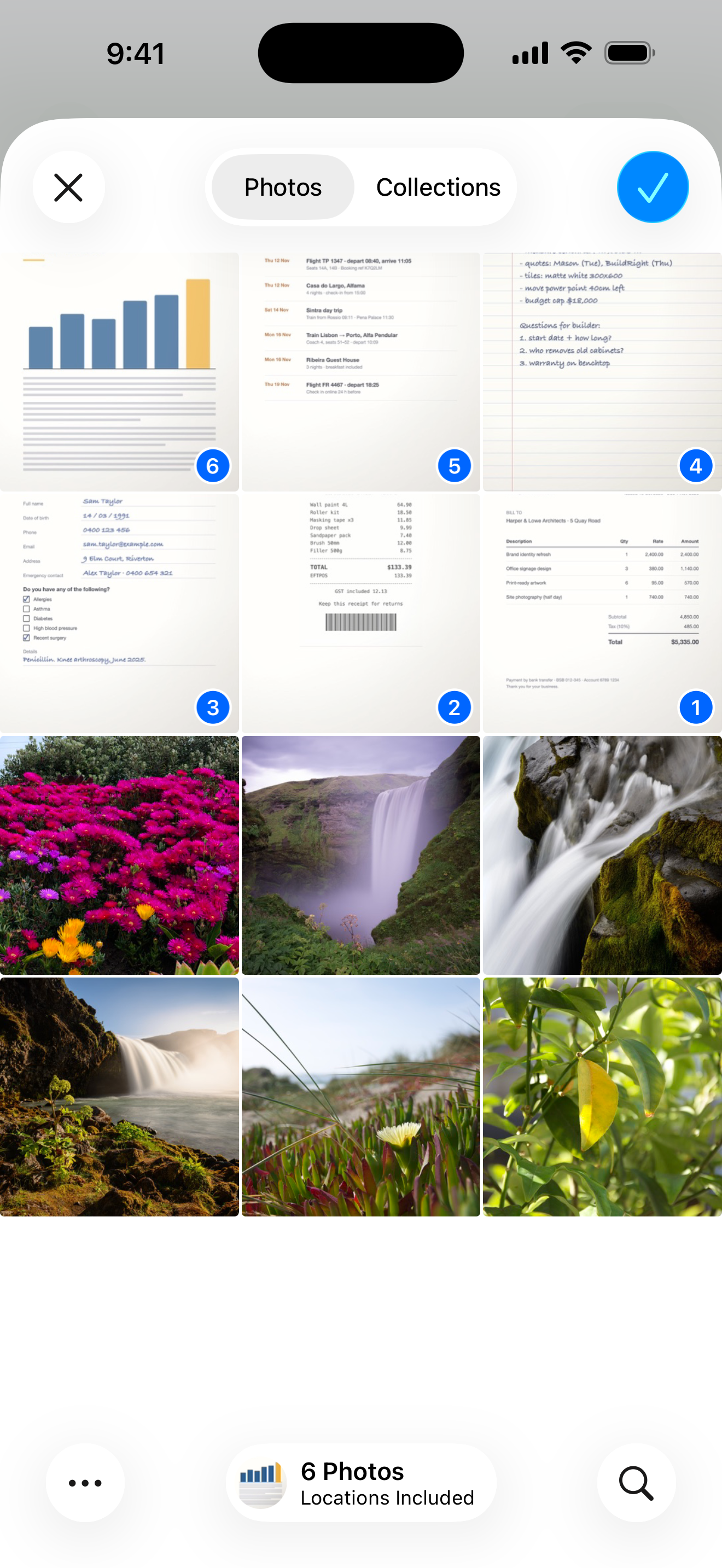
Select multiple pictures from your photo library, snap new photos, import existing PDFs, or scan two-sided ID cards. Combine all sources into a single PDF.
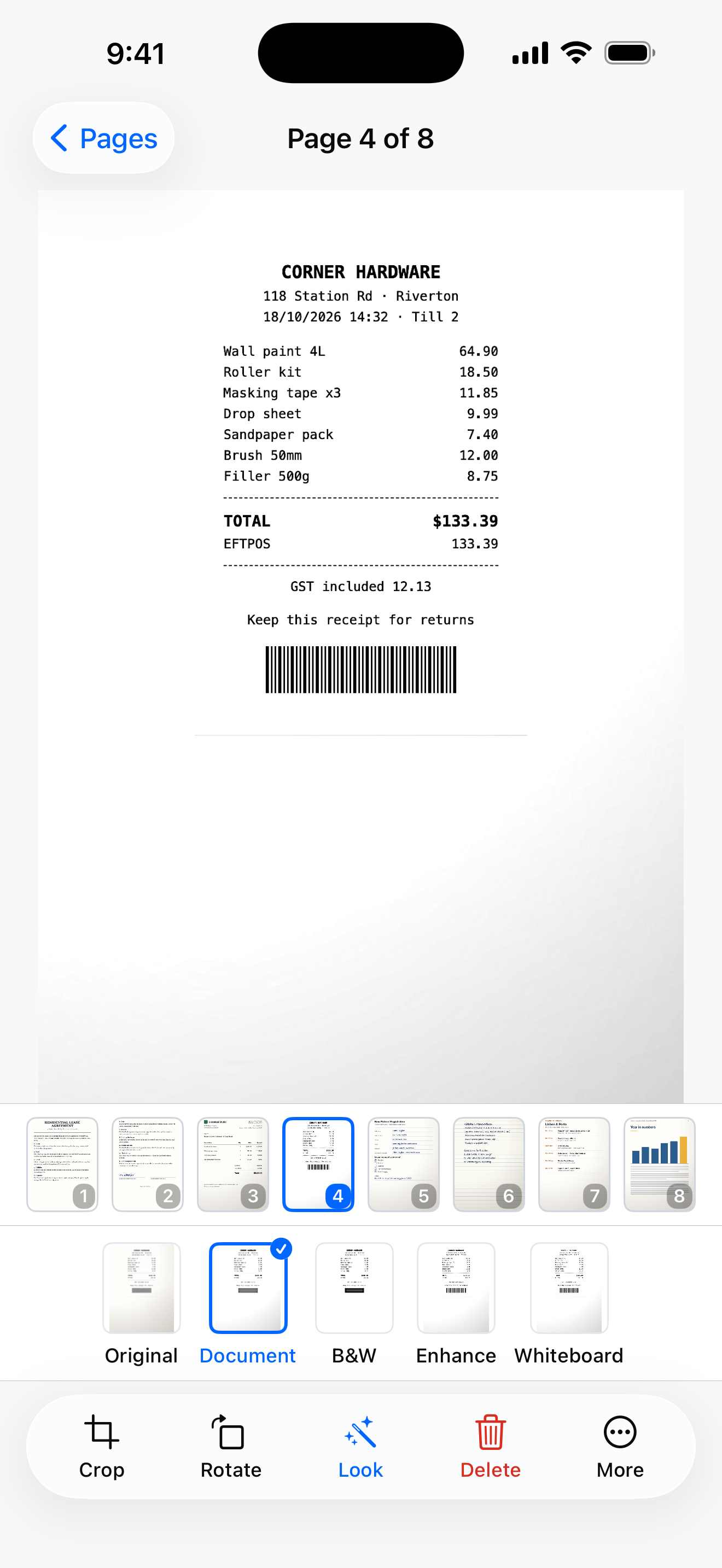
Tap any page to open the full editor. Crop borders, rotate 90°, redact sensitive personal numbers with black blocks, place signatures, or adjust visual filters.
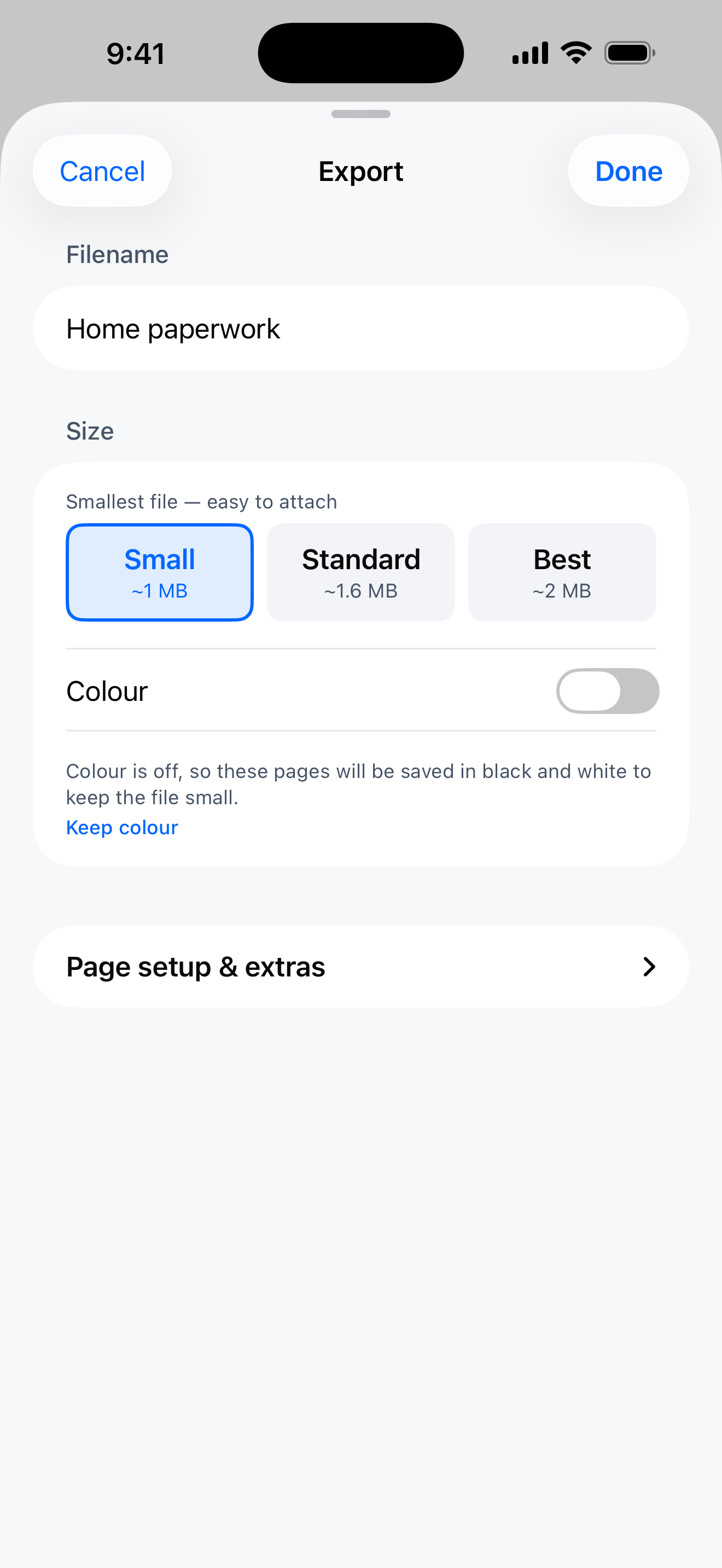
Small (Compact B&W for email attachments), Standard (Balanced colour for paper and forms), or Best (Original resolution for archival). Custom DPI and compression options available.
Match your recipient's expectations with US Letter (US/Canada) or A4 (worldwide) layouts, auto-orientation, margin adjustments, and custom page numbering.
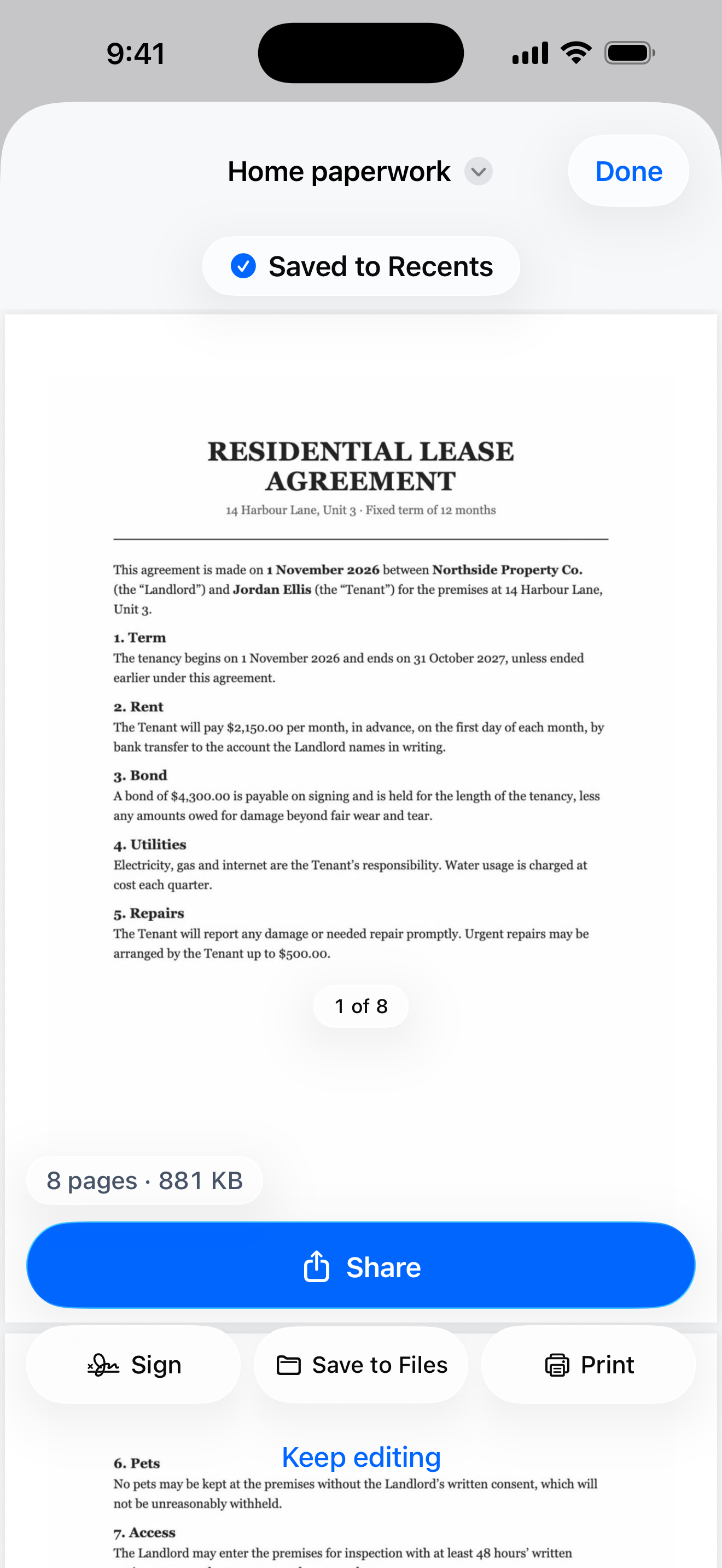
Previous exports stay organized in Recents. Search documents by title, rename files, re-share instantly, or compress saved PDFs directly to free device space.
Tailor your PDF file size and image resolution with transparent presets.
Compact 150 DPI resolution with grayscale conversion. Ideal for strict email attachment limits and job/government application portals.
200 DPI resolution with full colour preservation. The ideal balance between sharp print clarity and compact document size.
Preserves full camera resolution with gentle 85% JPEG compression. Retains every fine detail of photos and high-resolution scans.
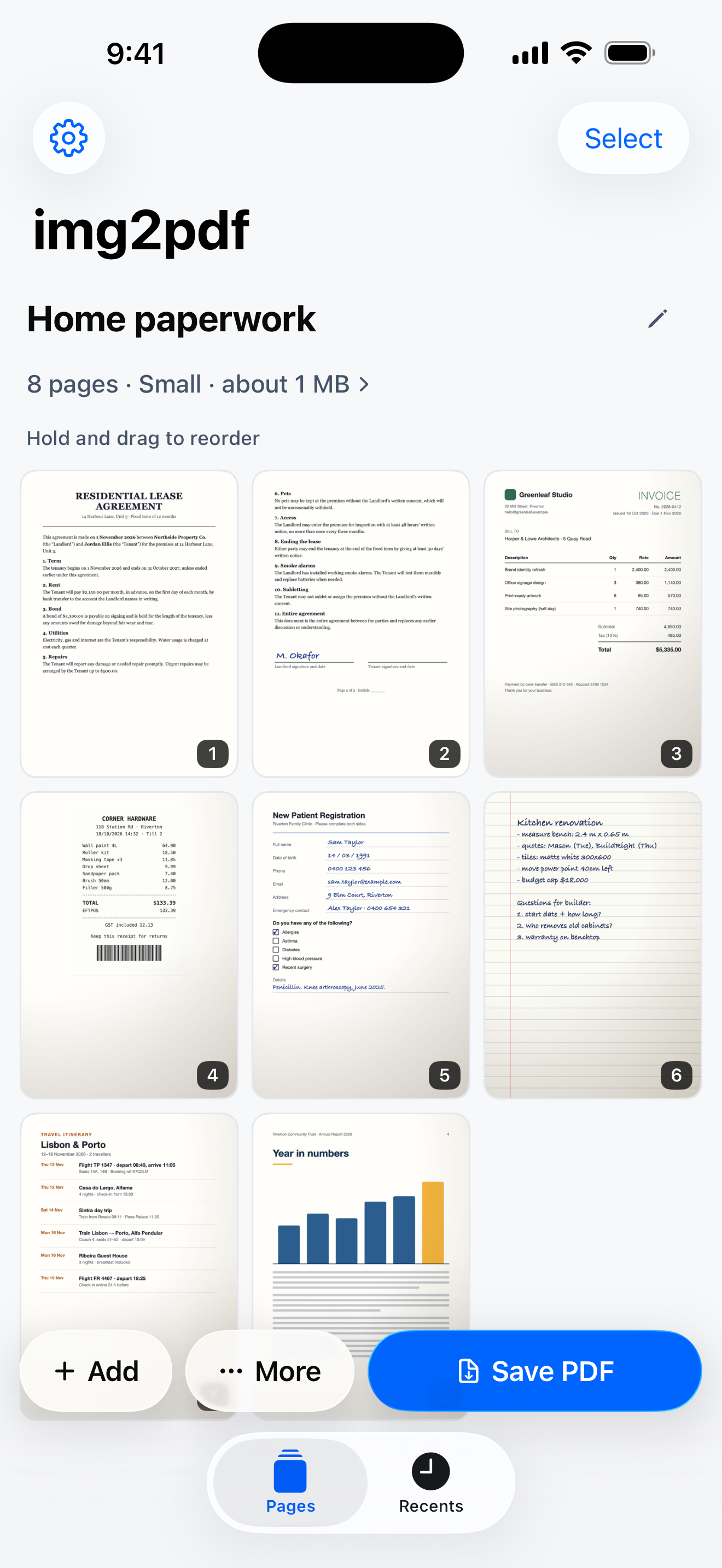
Tap Scan to use the camera scanner, or Choose photos to select images from your Photos library. You can also import existing PDFs.
Drag thumbnails to reorder pages. Tap any page to crop, rotate, redact sensitive numbers, or apply visual filters.
Select US Letter or A4, configure margins, choose your export preset (Small, Standard, or Best), and set an optional password.
Tap Save PDF to generate your file on-device in seconds. Share via AirDrop, Mail, Messages, or save into the Files app.
Step-by-step instructions for common document and photo workflows.
A comprehensive walkthrough of turning photo library pictures into a single, multi-page PDF on iOS without third-party web uploads.
Read guide →Learn how to use Apple VisionKit document scanning to capture receipts, contracts, and IDs with automatic corner detection.
Read guide →No, never. Every scan, photo import, and PDF conversion happens directly on your iPhone or iPad using Apple's native frameworks. The app operates 100% offline and makes zero network requests. Under Apple's App Store privacy nutrition label, img2pdf is classified as Data Not Collected.
Yes. img2pdf is completely free to download on the App Store with no subscription, no in-app purchases, no advertisements, and no user registration required.
Yes. You can select multiple photos from your library, capture new pages with the camera, scan documents with VisionKit, and import existing PDF files to merge into one organized PDF.
No. All exported PDFs are clean and free of watermarks. If you want a custom watermark for security or branding, you can optionally enable one in export settings.
Yes. In the export sheet, you can enter a password to encrypt and secure your PDF document before sharing.
Yes. In the page editor, tap More and select Redact to draw opaque privacy blocks over sensitive details like account numbers, signatures, or personal IDs before generating your PDF.
Exports are saved to the Recents tab on your device, where you can search, rename, preview, share, or compress them at any time. You can also save directly to the Apple Files app or iCloud Drive.
Scan documents or convert photo albums in seconds with 100% on-device processing.